Boards
Work it out on a board. Present it as a deck.
Pin up references, mark up drawings, and sort the options with your team on one canvas. When it is ready, select the frames and make the deck.


east entry before Friday.
How it works
The messy part, then the clean one.
Most projects start as a pile of references, sheets, and opinions. A board is where the pile lives, and where you decide what goes in front of the client.
01
Gather
Drop in renders, PDFs, and files from your Library, or bring a whole Miro board across with its frames, stickies, pictures, and PDFs.
02
Work it out
Sort the options, mark up the drawings, and group the references. Ask the assistant to cluster what is on the board into labelled frames. Your team works on the same canvas.
03
Make the deck
Select the frames you want and make a deck. Each frame becomes a slide, in the order it reads on the board. Then present it or send the link.
Make a deck
One selection. One deck.
Select the frames and each becomes a slide, in the order they read on the board. Select loose items instead and they land together on one slide. Either way you get a new deck, ready to present or share.
Oak
Warm timber at hand height, where people touch the building.
Stone
Pale limestone floors that carry the light.
Fins
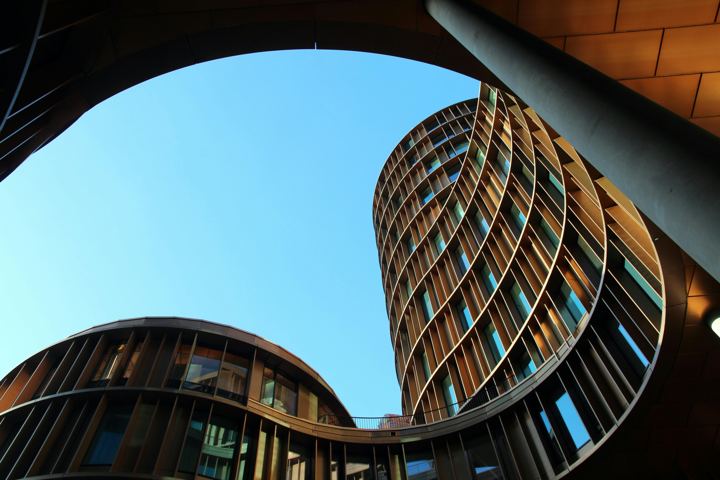
Vertical glass fins shade the west face.
Living
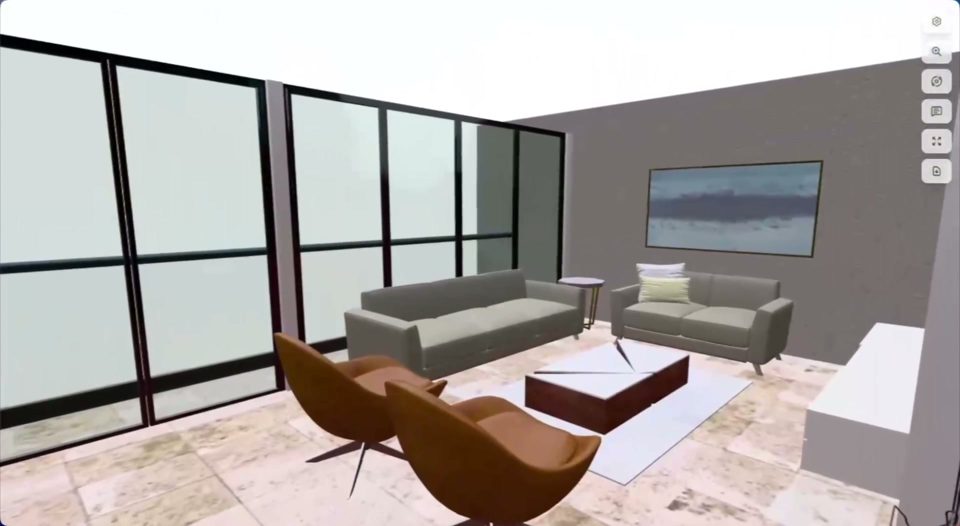
Seating faces the west glazing and the harbor.
Dining
A long stone table under the pendant line.
Finishes
Travertine floor, walnut, and soft gray upholstery.
 Share
ShareOak
Warm timber at hand height, where people touch the building.
Stone
Pale limestone floors that carry the light.
Fins
Vertical glass fins shade the west face.
Living
Seating faces the west glazing and the harbor.
Dining
A long stone table under the pendant line.
Finishes
Travertine floor, walnut, and soft gray upholstery.
Oak
Warm timber at hand height, where people touch the building.
Stone
Pale limestone floors that carry the light.
Fins
Vertical glass fins shade the west face.
Living
Seating faces the west glazing and the harbor.
Dining
A long stone table under the pendant line.
Finishes
Travertine floor, walnut, and soft gray upholstery.
01/On the board
Everything you would pin to the wall.
One canvas, as big as the project needs.
- FramesGroup pictures and notes into a frame, name it, and move the whole set together.
- Pictures and PDFsUpload from your computer, pull from your Library, or drop in PDF drawings.
- WalkthroughsPlace a Foveate 3D walkthrough on the board and explore it there.
- Stickies, text, and inkSticky notes in sixteen colors, text, shapes, lines, and freehand drawing.
- AssistantAsk about what you selected, group items into labelled frames, or generate an image or video straight onto the board.
- Team and sharingInvite the team, comment on the board, and share a view-only link.
The board is for the team. The deck is for the client.
Notes, rejected options, and fee talk stay on the board. A deck gets only what you selected, and it changes only when you update it from the board, so reworking the board never shifts what a client already has.
Coming from Miro
Bring the board you already have.
Import a Miro board with its frames, stickies, text, shapes, pictures, PDFs, and connectors, then make the deck from it. You connect your own Miro account, and nothing on the original changes.
Questions
Questions about boards
- What is a board in Foveate?
- A board is an unbounded canvas for the messy part of a project: pictures, PDF drawings, sticky notes, text, sketches, and 3D walkthroughs, grouped into frames. It sits in your workspace beside your decks, and you can file it under a project.
- Is a board a Miro replacement?
- It covers the pin-up, mark-up, and sorting work many design teams do on Miro, and it imports a Miro board with its frames, stickies, pictures, and PDFs. It is not built to cover every Miro template. The difference is the next step: select frames and make the deck without leaving Foveate.
- Does the deck update when I change the board?
- Only when you say so. The deck's card sits on the board beside the frames it came from and tells you when the board has changed since. Click Update from board to bring the changes across. Until you do, the deck stays as it was, so a presentation a client has already seen does not shift under them.
- Can clients see the board?
- Only if you choose. Invite teammates to the board, or share a view-only link when you want someone outside to look at the work in progress. Nothing on a board appears in a deck unless you selected it when you made the deck.
- What can I put on a board?
- Pictures, video, PDF drawings, text, sticky notes, shapes, freehand drawing, and Foveate files such as 3D walkthroughs, from your computer or your Library. Native DWG, DXF, RVT, and SKP files are not opened directly, so export a PDF or an image first.