Your client cannot open a .rvt file. Neither can the developer's lender, the board member who joins one meeting, or the procurement officer who forwards your proposal to legal.
That is the whole problem in one sentence. The model is the most persuasive thing your firm produces, and it is locked inside software only your team owns.
The usual workarounds all lose something. Screenshots flatten it. A fly-through video removes the client's ability to look where they want. A Zoom screen-share works, but only while you are on the call, and the model disappears the moment you hang up. What you actually want is a link. The client clicks it, the model loads in their browser, and they can move through it themselves at eleven at night when they are finally reviewing your proposal.
Here is how to get there.
The short version
Native CAD and BIM files are authoring formats. They carry parametric history, families, layers, and a dependency graph that only the authoring application understands. No browser opens them, and no browser should have to.
The delivery format for 3D on the web is glTF, or its compressed binary form GLB. It is an open standard maintained by the Khronos Group, and it is to 3D roughly what PDF is to page layout: not where you do the work, but how you hand the work to someone else.
So the workflow is always the same three moves:
- Export from Revit, Rhino, or SketchUp to glTF/GLB
- Upload that file to a platform that renders it in a browser
- Share a link
The interesting part is what you gain in step three, but the part that trips firms up is step one. Let's do that properly.
Exporting from Revit
Revit has no native glTF export, which surprises people. You have two reliable routes.
A dedicated glTF exporter. Several free and paid Revit add-ins export directly to glTF/GLB. They generally give you control over which categories to include and whether to bake materials. This is the cleanest path if you export often.
Via FBX or OBJ, then convert. Revit exports FBX natively. You then convert FBX to GLB in Blender, which is free, or in any of the standard conversion tools. This adds a step but avoids depending on an add-in.
Either way, do this before you export:
- Set up a dedicated 3D view. Do not export your working view. Make a view specifically for export, with only the categories the client needs.
- Hide what does not communicate. Grids, levels, reference planes, MEP if the conversation is about massing. Every hidden element is file size you are not asking the client to download.
- Check your materials. Revit materials do not map perfectly to glTF's physically based shading model. Expect to review the result and adjust. Plain, clean materials survive the trip better than elaborate procedural ones.
Exporting from Rhino
Rhino 7 and later export glTF and GLB natively. Use File > Export Selected or Save As, and choose glTF/GLB.
Two things worth knowing:
- Mesh density is yours to control. Rhino works in NURBS, and export meshes those surfaces. The mesh settings determine both how smooth curved geometry looks and how large the file gets. Coarse settings produce visible faceting on curved walls. Very fine settings produce a file too heavy to load comfortably.
- Blocks and layers. Named layers usually survive as object names, which is useful if you want the model organized once it is online. Check that block instances came through as expected.
Grasshopper definitions need to be baked to geometry before export.
Exporting from SketchUp
SketchUp exports glTF via extension, or you can go out through Collada or FBX and convert. The same principle applies: build a scene with only what the client needs to see.
Getting the file size right
This is the step firms skip, and it is the one that decides whether your client actually looks at the model or gives up.
A model that opens in four seconds gets explored. A model that takes forty seconds gets abandoned, and you will never know it happened. Some practical targets and techniques:
- Aim for tens of megabytes, not hundreds. There is no universal number, but a proposal model in the 10 to 50 MB range loads acceptably on normal connections.
- Use Draco compression. Most glTF exporters support it. It substantially reduces geometry size with no visible quality loss for presentation purposes.
- Resize your textures. A 4K texture on a door handle is wasted bandwidth. 1K or 2K is usually plenty at presentation scale.
- Delete what is not visible. Interior furniture in a model the client will only view from outside is pure weight.
What changes once the model is a link
This is the part worth caring about, because it is not just a format conversion.
When the model lives at a URL instead of in an email attachment:
Anyone can open it. No software, no license, no plugin, no download. Phone, tablet, laptop, the client's assistant, the lender. If they have a browser, they have the model.
There is one version. The link always points at the current model. Nobody is reviewing last month's massing because that is the file still sitting in their downloads folder.
You find out what happened. This is the real shift. A file you email disappears into silence. A link tells you it was opened on Thursday, explored for nine minutes, and forwarded to two people you have never met. That changes your follow-up from "just checking in" to a specific conversation about the thing they actually spent time on.
It sits inside the rest of the proposal. The model stops being an attachment and becomes one section of a proposal that also holds your narrative, your team, your fee, and your schedule.
This is what Foveate does with the file once you have exported it. You upload the GLB, and it renders in the browser in real time, alongside the rest of your proposal, on a link you can track. Worth being precise about the input: Foveate reads glTF and GLB, so the export step above is genuinely required. It does not open .rvt or .3dm directly, and no browser-based tool does.
Where this sits next to Enscape and Twinmotion
These get compared, and they should not be, because they solve different halves of the problem.
Enscape and Twinmotion are rendering companions. They plug into Revit, Rhino, or SketchUp, sync live with your model, and produce beautiful real-time visualization while you design. They are design-side tools, and they are very good at that.
A browser link is a delivery tool. It takes the model your team has already resolved and puts it in front of people who do not have your software and never will.
Most firms doing this well use both. They design with a real-time renderer, then export for client delivery. The question is not which tool wins. It is whether the thing you hand the client requires them to install anything.
Frequently Asked Questions
Q: Can I upload a Revit file directly to a browser viewer?
A: No. Browser-based 3D viewers, including Foveate, read web delivery formats like glTF and GLB, not native authoring formats like .rvt or .3dm. You export first. The export takes a few minutes once you have a view set up for it, and you can reuse that view for every future export.
Q: What is the difference between glTF and GLB?
A: They are the same standard in two containers. glTF is JSON with separate files for geometry and textures. GLB packages all of it into one binary file. For sharing, GLB is almost always what you want, because it is a single file with nothing to lose track of.
Q: Will my Revit materials look the same after export?
A: Not exactly. Revit materials and glTF's physically based rendering model do not map one to one, so expect to review and adjust after export. Simple, clean materials translate more predictably than complex procedural ones. Budget a little time for this the first time you export a given model.
Q: How large can the model be?
A: There is no hard limit, but there is a practical one set by your client's patience and connection. Keep proposal models in the tens of megabytes. Use Draco compression, downsize textures, and delete geometry the client will never see.
Q: Does the client need to install anything?
A: No. That is the entire point of the approach. The model renders in the browser using WebGL and WebGPU, which are built into current versions of Chrome, Safari, Edge, and Firefox. The client clicks a link.
Q: Can I still send a PDF if procurement requires one?
A: Yes, and you often will have to. Public work and institutional procurement frequently mandate a PDF of record. The practical approach is to treat the interactive link as the primary experience and export a PDF when the process demands it, rather than letting the PDF requirement dictate how you present to everyone else.
Already using a real-time renderer?
Enscape or Twinmotion vs Foveate
Design-side rendering and client delivery solve different problems. See exactly where each one fits, and where the two are meant to work together.
Read the Enscape comparison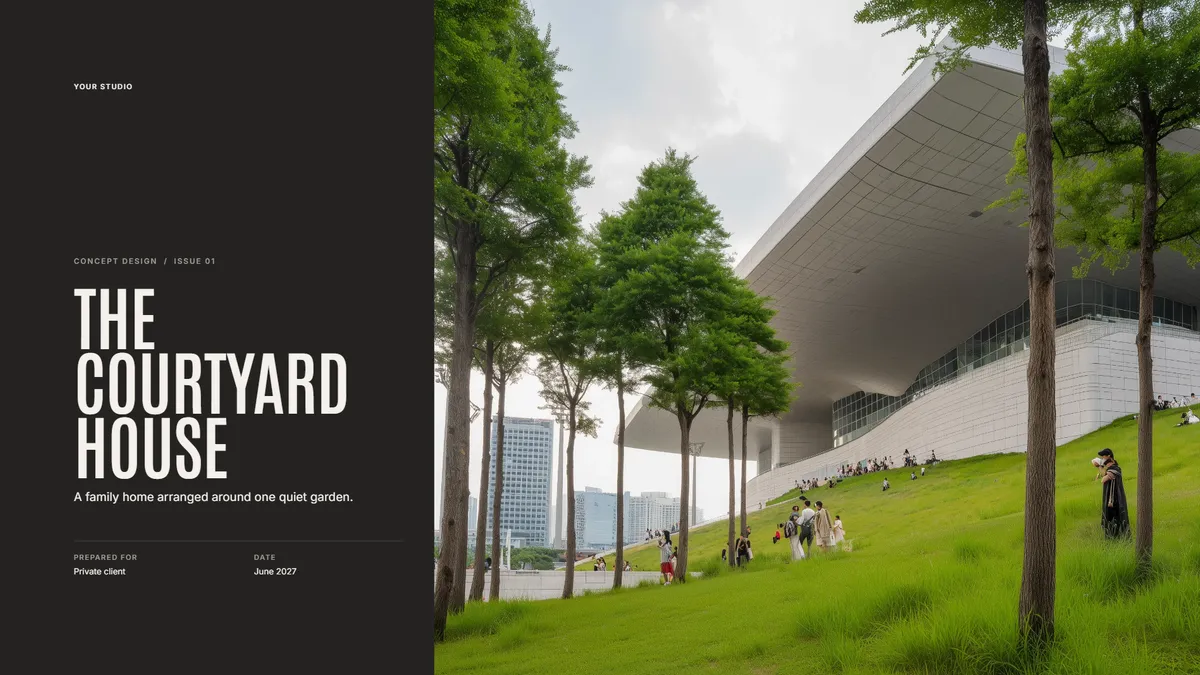
Free template
Concept Design Presentation
Walk a client through the site, the big idea, and the first massing. Make a copy in Foveate and swap in your own project.
About the Author

Kitae Kim
Architect with 10 years of experience in design and client communication. Co-founder of Foveate, the pursuit and client experience platform for AEC firms. Former studio lead who saw too many winning designs lose to worse proposals.
More on presenting design work
Insights
Interactive Architecture Presentations vs. PDF Proposals: Which Wins More Work?
The architecture industry has defaulted to PDF proposals for decades. The firms winning the most competitive work have moved to interactive formats — not because they're flashier, but because they solve a fundamental information density problem.
How To
What Architecture Presentation Tips Actually Win Projects?
Clients don't buy design. They buy confidence. Your presentation's job is not to show your work—it's to make clients believe you understand their problem, you can solve it, and working with you will be good.
How To
Client Presentation Mistakes Architecture Firms Make (And How to Fix Them)
Most losing presentations are not bad. They are well made and aimed at the wrong reader. Nine mistakes that show up repeatedly in architecture client presentations, why each one happens, and what to do instead.
This article is part of our guide to presenting design work.
Explore Architecture Presentation Software